To use Gemini Gems, go to gemini.google.com, open the sidebar, click Gems, then New Gem, and write instructions covering the persona, the task, and the format you want back — save it, and every chat you start from that Gem carries those instructions automatically. It's free on any Google account, and the entire setup takes about five minutes once you know what to put in each field.
Short answer: Open gemini.google.com, click Gems in the sidebar, then New Gem. Fill in a name and instructions (persona, task, context, format), preview it in the panel on the right, and click Save. Gems are free on every plan, including prebuilt ones like Coding Partner and Writing Editor. Edit, pin, share, or delete any Gem later from the same Gems menu.
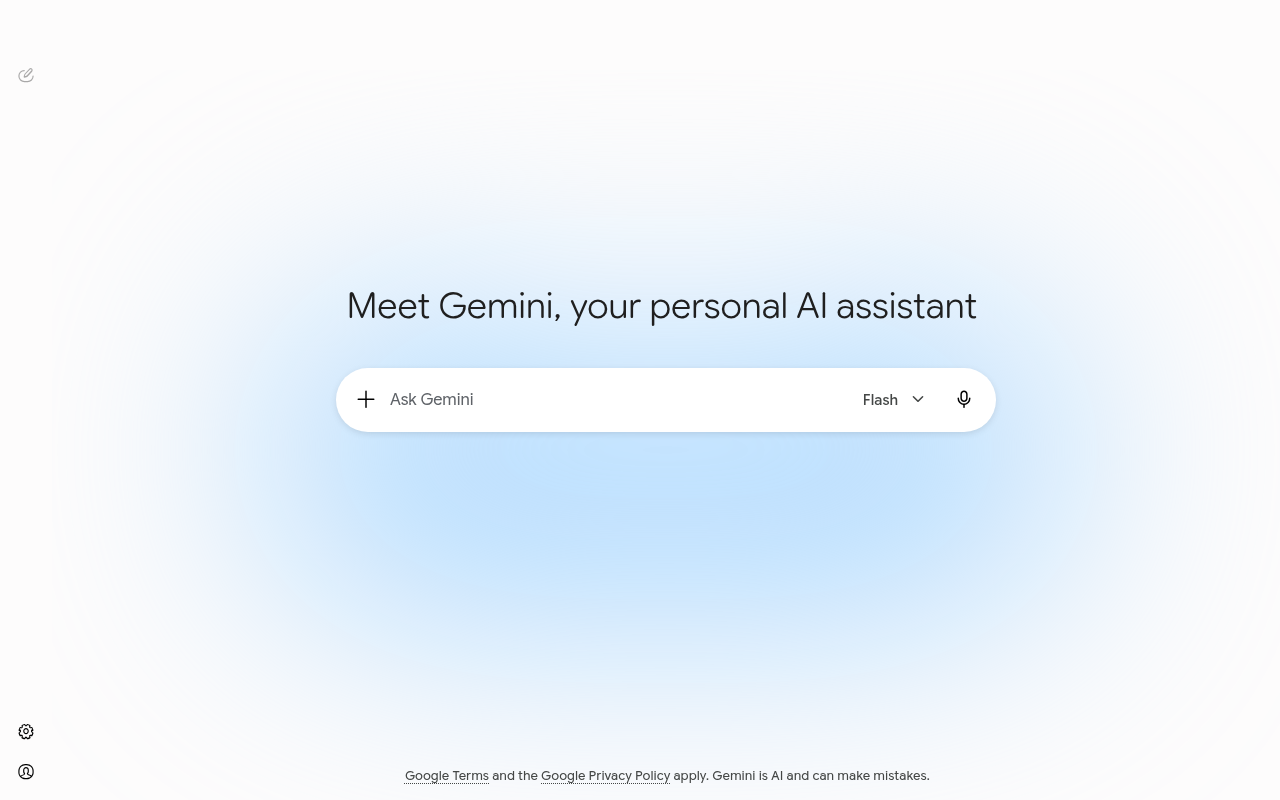
I built five Gems over the past two weeks — a resume editor, a coding partner clone, a weekly report drafter, and two I ended up deleting because the instructions were too vague to be useful. That last part turned out to be the real lesson. Here's exactly how to set one up, what the four instruction fields actually do, and the mistakes that make a Gem forgettable instead of genuinely useful.
What you'll need
Just a Google account — the same one behind Gmail or Drive works, and Gems cost nothing to create or use. You'll need a browser for the full setup experience at gemini.google.com; the Gemini mobile app can run your Gems once they exist, but building one from scratch is easier on desktop where you can see all four instruction fields at once. No credit card is requested at any point. If you want a Gem to reference specific documents, have a few files ready — Gems accept uploads like PDFs and Google Docs for extra context, though the exact file-type and size limits are covered in a separate support article rather than the Gem editor itself.
Step-by-step: How to use Gemini Gems
1. Open the Gems menu
Go to gemini.google.com, sign in, and click Open sidebar if it isn't already expanded. Click Gems — you'll land on a page split between your own Gems and a row of premade ones Google ships with every account.
2. Try a prebuilt Gem first
Before building your own, click one of the five ready-made options: Brainstormer, Career guide, Coding partner, Learning coach, or Writing editor. Each opens a normal chat with hidden instructions already loaded — a fast way to see what a well-scoped Gem actually behaves like before you write your own.
3. Click New Gem and name it
From the Gems page, click New Gem. Give it a short, specific name — "Resume Editor" beats "Helper" — since that name is what you'll pick from a dropdown every time you start a new chat with it later.
4. Fill in the four instruction fields
Write instructions covering persona (what role it plays and how it should respond), task (what you want it to do or create), context (background it should always assume), and format (the structure you want back — bullet points, a specific length, a template). This is the part that separates a Gem worth keeping from one you'll delete in a week. Skip a field and Gemini falls back to a generic answer in that area.
5. Preview before you save
Use the prompt box on the right side of the editor to test your Gem with a real question before committing to it. Previewing doesn't save anything automatically — you have to click Save once the instructions actually behave the way you want.
6. Upload files for extra context (optional)
If your Gem should know about a specific document — a style guide, a set of past reports, your resume — attach it in the editor. The Gem references those files every time you use it, so you don't have to re-paste the same context into every chat.
7. Save, then start chatting from it
Click Save. From then on, select your Gem from the Gems list or the sidebar before you type, and every message in that chat runs through your saved instructions automatically — no re-explaining your situation each session.
8. Edit, pin, share, or delete later
Open Gems in the sidebar, click a Gem under My Gems to edit its instructions and click Submit to save changes, or click the options menu next to it to Pin (moves it to the top of your list), Share (send an email invite so someone else can use or edit it), or Delete. Anyone with edit access to a shared Gem can also update or delete it, according to Google’s Gems support documentation, so share carefully.
Example prompts you can copy
The instructions field is where the real work happens — a vague one-liner produces a generic Gem. A few instruction sets I reuse, written the way you'd type them into the Gem editor:
- Resume editor Gem: "Persona: a blunt technical recruiter. Task: review resume bullets for vague claims and missing numbers. Context: I'm applying for backend engineering roles. Format: one specific rewrite suggestion per bullet, no praise first."
- Weekly report Gem: "Persona: my own writing style, casual but organized. Task: turn rough bullet notes into a team update. Context: audience is a non-technical manager. Format: three sections — Done, In Progress, Blocked — under 200 words total."
- Study partner Gem: "Persona: a patient tutor who never gives the answer directly. Task: quiz me on the topic I paste in. Context: I'm reviewing for an exam, not learning from scratch. Format: one question at a time, wait for my answer before the next."
- Meeting-notes Gem: "Persona: a precise note-taker. Task: convert raw transcript text into action items. Context: flag anything that sounds like a decision versus just discussion. Format: a table with columns for Action, Owner, and Deadline."
Each one names all four fields explicitly — persona, task, context, format — instead of a single sentence, which is the gap between a Gem you'll actually reuse and one you'll forget exists.
Common mistakes to avoid
The one I made first: writing a one-sentence instruction like "help me with emails" and expecting a useful Gem — it behaved almost identically to a plain chat because there was nothing specific to follow. Second, skipping the preview step and saving blind; I caught two Gems giving oddly formal answers only because I tested them with a real question before committing. Third, building a brand-new Gem for a one-off task instead of just using plain chat — Gems earn their setup time on anything repeated, not a single session. Fourth, forgetting a shared Gem gives edit access by default, not just view access, so anyone you share with can quietly change your instructions later. Fifth, assuming file uploads make a Gem permanently smarter about that document — in my testing, a Gem references what you attach in its setup, but it's not the same as it learning from every chat you have with it afterward.
Gems vs. a plain Gemini chat
Gems and a fresh chat both run the same underlying model — the difference is what carries over automatically.
| Plain chat | Gemini Gem | |
|---|---|---|
| Setup | None | Persona, task, context, format instructions |
| Repeats your context | No — retype it each session | Yes — saved instructions apply every time |
| Cost | Free | Free |
| Best for | One-off questions | Anything you ask more than twice |
| Shareable with others | No | Yes, with edit or view access |
| Prebuilt options | N/A | 5 (Brainstormer, Career guide, Coding partner, Learning coach, Writing editor) |
If a question only comes up once, a Gem is overhead you don't need. Once you notice yourself re-explaining the same situation in a third or fourth chat, that's the actual signal to build one. Gems ship free across every tier, including the $0 plan, per Google’s current AI plans page.
Tools that make this easier
Gems are strongest for narrow, repeatable jobs — a resume reviewer, a specific report format, a study quiz — and they live entirely inside Gemini, so they won't help with tasks better suited to a dedicated tool. For the rest of what Gemini's free plan covers, including Deep Research and Canvas, my fuller how to use Gemini AI guide walks through the full setup, and how to use Gemini covers every surface Gemini lives on beyond the web chat. If you're comparing Gemini's approach to custom assistants against Anthropic's, how to use Claude AI covers the equivalent Projects feature — in my experience Projects handles longer documents more consistently, while Gems are quicker to set up for a short, repeatable task. If your Career guide Gem experiments turn into a real job search, best AI tool for job searching rounds up dedicated options built for that specifically. Students leaning on a Learning coach Gem should also see best AI tool for study, and if a Coding partner Gem isn't cutting it for real development work, ChatGPT alternatives for coding covers tools built for that job. For high-volume writing beyond what a Writing editor Gem handles, my ranked best AI writing tools guide and hands-on Jasper review cover the dedicated options worth paying for.
My take on Gems
Gems solve a real annoyance — re-explaining your situation at the start of every chat — and the setup cost is genuinely small once you fill in all four instruction fields instead of just one sentence. Where they fall short is anything that needs the Gem to actually learn over time; it's a fixed set of instructions plus whatever files you attached at setup, not a system that gets smarter the more you use it. Start with a prebuilt Gem to see the pattern, then build your own only for tasks you're already repeating — that's the whole trick, and it took me about five minutes per Gem once I stopped writing vague instructions.
Frequently Asked Questions
Is Gemini Gems free to use?
Yes. Gems are available on Gemini's free plan with any Google account, including the five prebuilt options and unlimited custom Gems. Paid plans like Google AI Plus ($4.99/month) and Pro ($19.99/month) raise overall usage limits, but they don't gate the Gems feature itself.
How long does it take to learn how to use Gemini Gems?
Creating your first Gem takes about five minutes once you know the four fields — persona, task, context, format. Writing instructions specific enough that the Gem actually saves you time usually takes one or two revisions after your first real use.
What is the easiest way to use Gemini Gems?
Start with a prebuilt Gem like Writing editor or Coding partner to see how instructions shape the output, then copy that pattern into your own Gem. Fill in all four instruction fields instead of a single vague sentence, and preview it with a real question before saving.
Can I share a Gem I built with someone else?
Yes. Open the Gems page, click Share next to the Gem, and enter an email address. Anyone you share it with can use it, and by default they can also edit or delete it, so only share Gems you're fine having someone else change.
Do Gems get smarter the more I use them?
No, not automatically. A Gem runs on the instructions and any files you set up at creation — it doesn't learn from your ongoing conversations the way you might expect a personal assistant to. If a Gem needs new context, go back into its settings and update the instructions or files directly.