To use Gemini, go to gemini.google.com or install the Gemini app on Android or iPhone, sign in with any Google account, and start typing or talking — no payment method required. The part that trips up first-timers isn't the chat box itself; it's that Gemini also lives inside Gmail, Docs, Chrome, and your phone's assistant button, and each surface behaves a little differently.
Short answer: Sign in free at gemini.google.com, in the Gemini app on Android/iPhone, or through the assistant button on your phone — all use the same Google account, no card needed. Type or talk to get an answer immediately. Free covers daily chat, image generation, and Deep Research; Google AI Plus ($4.99/mo) and Pro ($19.99/mo) add higher usage limits and access in more apps.
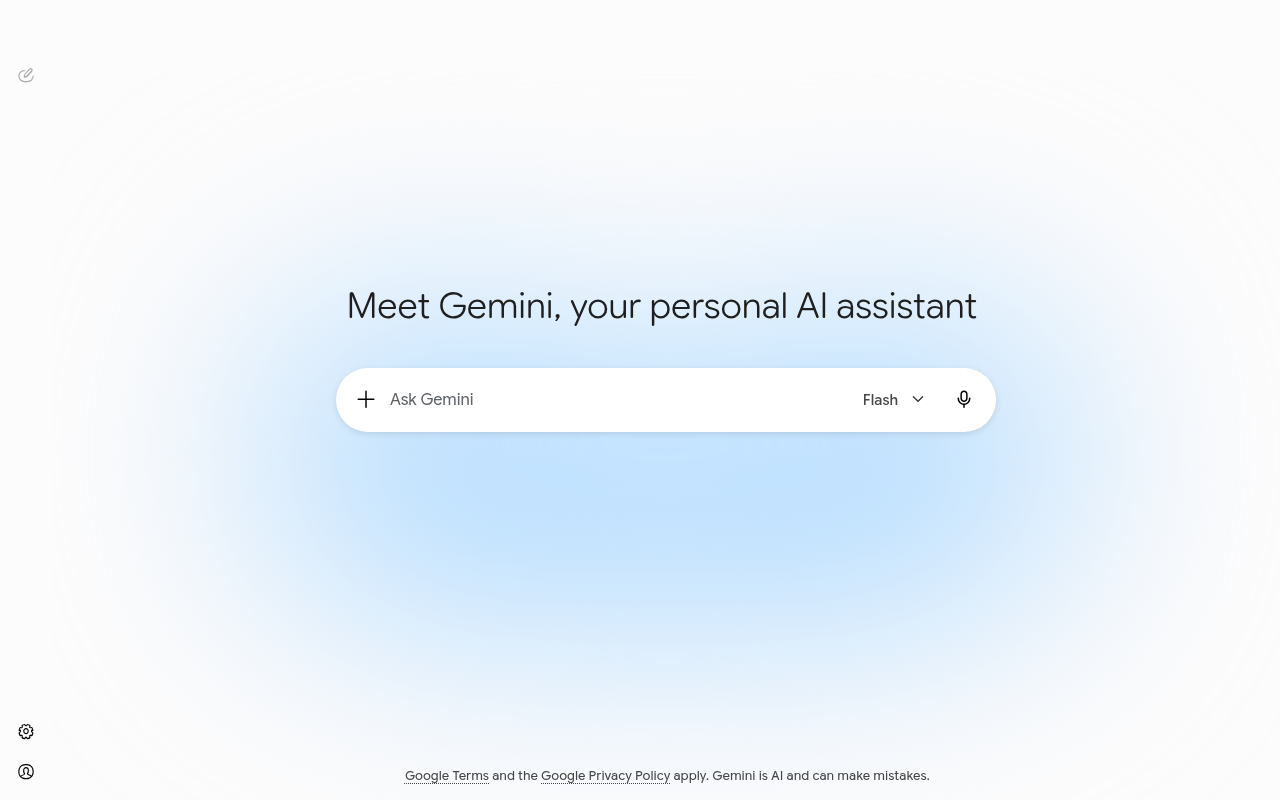
In my testing I set Gemini up fresh on three surfaces — the web at gemini.google.com, the Android app as the default assistant, and the Gemini side panel inside Gmail — to see where a first-time user actually lands versus where the marketing implies. Here's where Gemini lives, how to get going on each one, and the mistakes that make people think it's broken when it's really just a plan or permissions issue.
What you'll need
A Google account is the only hard requirement — the same one behind Gmail or Drive works, and Gemini itself costs nothing to start. On desktop you just need a browser. On mobile, install the Gemini app from the Play Store or App Store; on newer Android phones it may already be preinstalled and offered as your default assistant during setup, and the Gemini app is hosted within the Google app itself even after installing it separately, per Google’s own setup documentation. No credit card is asked for at any point on the free plan. A handful of surfaces gate access behind a paid plan — Gemini inside Gmail and Docs on a personal account, for instance — but the core chat experience at gemini.google.com and in the mobile app is free on any Google account.
Step-by-step: How to use Gemini
1. Pick your surface
Web (gemini.google.com), the Gemini mobile app, or your phone's built-in assistant button all reach the same underlying model, but they're separate apps with separate settings. If you just want to ask a quick question, the web or app is simplest; if you want Gemini to replace your phone's voice assistant, that's a setup step on its own (see step 3).
2. Sign in and start chatting
Go to gemini.google.com, or open the Gemini app, and sign in with any Google account — there's no separate registration. Type a question into the message box and press enter. Start a new topic any time with New chat in the side panel so old context doesn't bleed into it.
3. Set Gemini as your phone's default assistant (optional)
On Android, open the Gemini app, go to Settings → General, and turn on Set as default assistant app — after that, your usual assistant gesture (holding the power button or saying the wake phrase) opens Gemini instead of Google Assistant. On iPhone, Gemini runs as a standalone app rather than replacing Siri; you open it directly or add it to your lock screen widget.
4. Try it inside Gmail, Docs, or Search when it's available
If your account has access, you'll see a sparkle icon or Ask Gemini button inside Gmail, Google Docs, and Search. On a plain personal free account that button is often missing or limited — it's tied to Google AI Plus, Pro, or a Workspace plan, not a bug in your setup. My full how to use Gemini in Google Docs guide covers that surface specifically.
5. Talk instead of type with Gemini Live
Tap Live in the app, or say the wake phrase and ask to talk, to switch from typed chat to a real-time voice conversation, camera included. It's free on every plan. The full walkthrough, camera tips, and desktop version are in how to use Gemini Live.
6. Go deeper with Gems and Deep Research once the basics feel easy
Once plain chat feels routine, open the side menu for Gems (custom instructions you reuse) and Deep Research (a multi-source research report instead of a single answer). Both are free-plan features. I cover setting both up, with real timing numbers, in how to use Gemini AI.
Example prompts you can copy
In my testing, the gap between a flat answer and a useful one came down to how much context I gave Gemini in the first message, not which surface I used. A few I reuse across the app and web version alike:
- "Summarize this email thread in three bullet points, then tell me what response, if any, it needs: [paste or attach]."
- "I'm on my phone and short on time — give me a two-sentence answer first, then expand if I ask."
- "Explain [topic] the way you'd explain it to someone who knows [related topic] but hasn't seen this specific idea before."
- "Act as a proofreader. Point out anything that sounds unclear or too long in this paragraph, don't rewrite it yet: [paste text]."
- "Compare [option A] and [option B] on price, main limitation, and who each is actually built for."
Each one states the format or the constraint Gemini should aim for, which is what separates a genuinely reusable prompt from a one-off question.
Common mistakes to avoid
The one I ran into first: expecting the Gemini button to appear inside Gmail or Docs on a free personal account — it usually doesn't, and that's a plan gap, not a broken install. Second, setting Gemini as the Android default assistant and then being surprised some Assistant-only routines (certain smart-home commands, for instance) behave differently under Gemini; test your specific routines before relying on them. Third, starting every new topic in the same long chat thread instead of hitting New chat — old context can skew the tone or focus of an unrelated question. Fourth, treating the first answer as final instead of correcting it directly ("shorter," "you're missing the price," "cite the source") — that sharpens the next draft far more than regenerating from scratch. And fifth, trusting a specific number, date, or price Gemini gives you without checking the source; I verify anything with hard facts against the vendor page before I use it, the same habit worth having with any AI tool.
Where Gemini shows up, at a glance
Free covers the web chat and mobile app fully; paid plans mainly unlock higher usage limits and access inside Gmail, Docs, and Sheets, according to Google’s current AI plans page.
| Surface | Cost to start | What it's for |
|---|---|---|
| gemini.google.com (web) | Free | Full chat, Gems, Deep Research, Canvas |
| Gemini app (Android/iPhone) | Free | Same chat, plus Gemini Live and camera |
| Default Android assistant | Free | Voice commands, replaces Google Assistant |
| Gemini in Gmail/Docs/Sheets | Requires AI Plus, Pro, or Workspace | In-app drafting and editing |
| Gemini Live (voice) | Free | Real-time talk, camera, screen share |
Tools that make this easier
Gemini isn't the only assistant worth having open, and it isn't the only place inside Google's own ecosystem you'll run into it either. For the full feature set at gemini.google.com — Gems, Deep Research timing, and which paid plan is actually worth it — see my deeper how to use Gemini AI guide. If you spend more time talking than typing, how to use Gemini Live covers the camera and voice controls in detail, and if you write inside Google Docs regularly, how to use Gemini in Google Docs walks through the side panel and floating toolbar. If you're deciding between Google's assistant and Anthropic's, how to use Claude AI covers the equivalent setup — in my experience the two are close enough that plenty of people keep both open. For OpenAI's free tier by comparison, see how to use ChatGPT for free. And if your work is mostly long-form writing at volume rather than quick chat answers, a dedicated tool can outperform any general assistant — my ranked best AI writing tools guide and hands-on Jasper review cover the ones worth paying for.
My take
The confusing part about Gemini isn't using it — typing a question and getting an answer takes seconds on any surface. It's that "Gemini" means at least five different things depending on where you open it, and the free plan doesn't reach all of them equally; Gemini in Gmail and Docs is the one that catches people off guard since the button just isn't there without a paid plan. Start at gemini.google.com or the mobile app, get comfortable with New chat and specific prompts, and only chase the extra surfaces — default assistant, Live, Docs — once the basics are second nature. That order got me a usable setup in about ten minutes.
Frequently Asked Questions
Is Gemini free to use?
Yes, on the core surfaces. gemini.google.com and the mobile app give you real chat access, image generation, Gemini Live, Gems, and Deep Research at no cost. Gemini inside Gmail, Docs, and Sheets on a personal account generally requires Google AI Plus ($4.99/mo) or Pro ($19.99/mo), or a Workspace plan.
How long does it take to learn how to use Gemini?
A few minutes for the basics on any single surface — sign in, type or talk, get an answer. Figuring out which of Gemini's other surfaces (default assistant, Live, Docs) you actually want set up usually takes a first session of ten to fifteen minutes.
What is the easiest way to get good results from Gemini?
Give it a specific task, format, or constraint in your first message instead of a vague topic, and correct the first answer directly — "shorter," "you missed the price," "cite the source" — rather than regenerating and hoping for something better.
Does setting Gemini as my default assistant replace Google Assistant everywhere?
Mostly, but not identically. Some Assistant-only routines and smart-home commands can behave differently once Gemini is your default, so it's worth testing the specific commands you rely on daily before assuming full parity.
Do I need the Gemini app if I already use the Google app?
No — the Gemini app is hosted within the Google app framework, but you can chat with Gemini in a browser at gemini.google.com without installing anything extra. The dedicated app mainly matters if you want Gemini Live, the camera, or default-assistant status on your phone.