To use Gemini Live, open the Gemini app and tap Live (or say "Hey Google, let's talk"), or on desktop click Ask Gemini in Chrome and select Go Live — either way you're talking to Gemini out loud within seconds. The part that actually trips people up isn't the button; it's knowing when to use the camera, how to switch voices, and what quietly stops working mid-session.
Short answer: Open the Gemini app on Android or iPhone and tap Live, or say "Hey Google, let's talk." On desktop, click Ask Gemini in Chrome and select Go Live. Gemini Live is free on every plan, works with your camera and screen, and lets you switch between voice and text without losing the conversation.
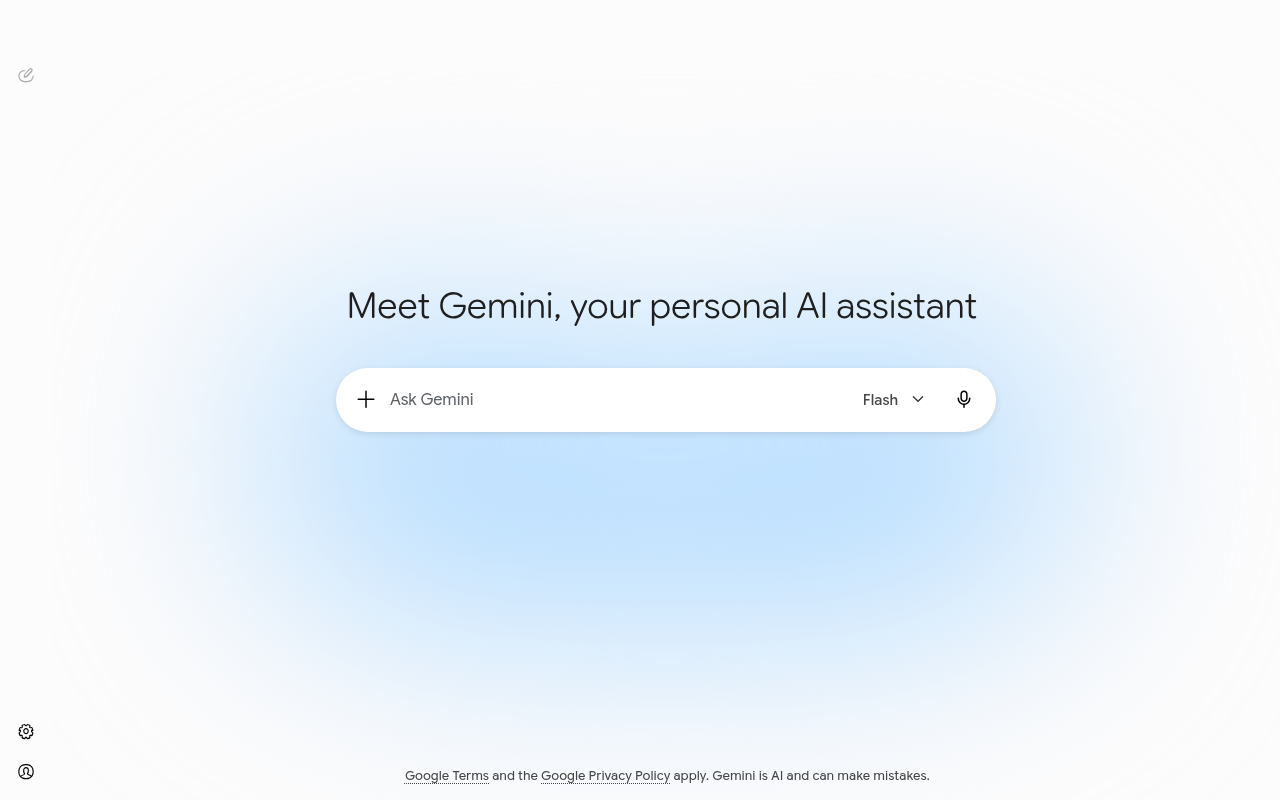
I've been running Gemini Live most days for the past couple of weeks — hands-free while cooking, pointing the camera at things to ask what they are, and going back and forth between the Android app and Chrome on my laptop — to see where it's genuinely useful and where it stalls. Here's what actually happens at each step, what's free, and the mistakes that waste a session.
What you'll need
A Google account is the only real requirement, and you need to be 18 or older to turn on the microphone. On mobile, you need the Gemini app itself — not the Google app or Google Messages — updated to its latest version, on Android or iPhone. On desktop, you need Chrome with Gemini enabled and microphone permission granted. Gemini Live is included at no cost on the free plan, so no subscription or payment method is required to try it. Two things worth knowing before you start: Gems can't be used while you're in a Live session, and support for Farsi isn't there yet, per Google’s Gemini Apps Help.
Step-by-step: How to use Gemini Live
1. Open the Gemini app and tap Live
On Android or iPhone, open the Gemini app, then tap Live at the bottom of the screen or swipe left. You can also just say "Hey Google, let's talk Live." The first time, follow the short on-screen setup — after that it's one tap.
2. Or go Live from Chrome on desktop
On your computer, open Chrome, click Ask Gemini at the top, then select Go Live in the text box. Grant microphone access when prompted. This is the same conversation engine as the mobile app, just without the camera.
3. Start talking — and interrupt freely
Once the session opens, just talk like you would to a person. You can cut Gemini off mid-sentence to add detail or change topics entirely, and in my testing it picks up the new thread without losing the thread of what came before.
4. Show it your camera when it helps
Tap the camera icon to point your phone at whatever you're asking about — a plant, a menu, a math problem on paper. Gemini narrates what it sees in real time. It'll turn itself off automatically if you put the session on hold, lock your screen, or leave the app.
5. Share your screen or switch to text
On mobile, tap the screen-share icon (you'll need Live notifications turned on). On Chrome desktop, you can share up to 10 of your recently open tabs at once and ask Gemini to scroll or jump to specific content for you. At any point you can drop back into typed text without restarting the conversation.
6. Manage voice, captions, hold, and mute
In Settings, under Gemini's Voice, you can pick a different voice for the session. Tap Hold to mute your mic and pause, or Mute to silence yourself while Gemini keeps talking. Captions can be toggled on mid-conversation if you want a visual record as you go.
7. End the session and check the transcript
Tap End, or swipe right on mobile, to close things out — you'll get a full transcript of what was said, which is useful for pulling out anything you want to keep.
Example prompts you can copy
The prompts that got the most out of Gemini Live for me leaned on the things typing can't do — the camera and the back-and-forth pacing — rather than generic questions:
- "Look at what I'm holding through the camera and tell me if this plant needs more water or more light."
- "Walk me through this recipe step by step, and pause after each one until I tell you I'm ready for the next."
- "I'm going to talk through my pitch out loud — stop me if a sentence is confusing and tell me why."
- "Look at this whiteboard through the camera and read the notes back to me as a numbered list."
- "Quiz me on [topic] out loud, one question at a time, and tell me right away if I got it wrong."
Each one works because it uses voice and camera for something a text box genuinely can't do as well — real-time pacing or seeing what you're seeing.
Common mistakes to avoid
The one I hit most often: trying to use a Gem inside a Live session — it just isn't supported yet, so switch to text chat first if you need a custom Gem's instructions. Second, forgetting that the camera turns itself off the moment you lock your screen or background the app, then wondering why Gemini stopped "seeing" anything. Third, leaving Live notifications off and then finding screen sharing won't start — that permission has to be on ahead of time. Fourth, expecting a word-for-word transcript to be flawless; voice-to-text still occasionally mishears names and numbers, so double-check anything you plan to act on. And fifth, talking over Gemini expecting it to interrupt gracefully when you've turned that setting off — check Settings if it feels like it's talking past you.
Where you can use Gemini Live
Gemini Live works a little differently depending on where you open it. Here's how the three main entry points compare:
| Platform | How to start | Camera | Screen share |
|---|---|---|---|
| Android app | Tap Live, or say "Hey Google, let's talk" | Yes | Yes, with Live notifications on |
| iPhone/iPad app | Tap Live (must unlock your phone first) | Yes | Limited vs. Android |
| Chrome desktop | Click Ask Gemini, then Go Live | No | Yes, up to 10 open tabs |
Tools that make this easier
Gemini Live is one feature inside a much bigger assistant, and it's worth knowing what the rest of Gemini can do — my full how to use Gemini AI guide covers Gems, Deep Research, and which paid plan is actually worth it. If you're deciding between Google's model and Anthropic's, how to use Claude AI walks through the equivalent setup, and for OpenAI's side, how to use ChatGPT for free and how to use ChatGPT agent mode cover the comparable free and agentic tiers. None of the big three has a voice mode that replaces the others outright — if your work is mostly long-form writing rather than talking things through, a dedicated tool wins there, and my ranked best AI writing tools guide and hands-on Jasper review cover the ones worth paying for. If you're setting this up for a classroom, best AI tools for teachers rounds up the tools built for that job specifically.
My take
Gemini Live earns its spot for anything you'd rather talk through than type — cooking, rehearsing something out loud, or pointing a camera at a real object and asking what it is. It's free on every plan, according to Google’s current Gemini pricing page, so there's no reason not to try it once you've got the app. The rough edges are small but real: no Gems in Live yet, the camera cutting out the moment you lock your screen, and voice-to-text still fumbling names occasionally. None of that changes my read that it's genuinely useful, not a gimmick — just don't expect it to replace typed chat for anything you need word-for-word accurate.
Frequently Asked Questions
Is Gemini Live free?
Yes. Gemini Live is included on the free plan at no cost, and it carries over unchanged into Google AI Plus ($4.99/mo), Google AI Pro ($19.99/mo), and Google AI Ultra ($99.99–$199.99/mo) — paying more doesn't unlock extra Gemini Live features, just higher usage limits elsewhere.
How long does it take to learn how to use Gemini Live?
Starting a session takes seconds — tap Live or say "Hey Google, let's talk." Getting comfortable with the camera, screen sharing, and the hold/mute controls usually takes one or two real sessions.
What is the easiest way to use Gemini Live?
Open the Gemini app, tap Live, and just talk like you would to a person — interrupt it whenever you want instead of waiting for it to finish. Add the camera only when you actually need it to see something.
Can I use Gemini Live on my computer?
Yes. Open Chrome, click Ask Gemini, and select Go Live. It's the same conversational engine as the mobile app, minus the camera, plus the ability to share up to 10 open browser tabs.
Does Gemini Live work with Gems or Deep Research?
No, not directly — Gems can't be used inside an active Live session. Switch to regular text chat first if you need a custom Gem's saved instructions, then move back to Live for the voice conversation.