If you've hit the point where you're ready to say I'm done coding with AI, the frustration is real and it's backed by data, not just a bad week. Most of the time the problem isn't the technology itself — it's a specific, fixable mismatch between the tool, the task, and how you're using it.
Short answer: Before you quit AI coding tools for good, check three things: whether you're using autocomplete for agent-sized work (or vice versa), whether your diffs are too large to review honestly, and whether you've actually timed the slowdown or just felt it. In my testing, two of those three account for most "I'm done" moments — and they're each a five-minute fix.
Last updated August 25, 2026.
I've felt the "I'm done coding with AI" moment myself — usually around the third time in a session I've had to unwind a multi-file agent change that touched code I never asked it to touch. So I ran a two-week test: the same set of real backend tasks, done first with whatever AI coding assistant felt fastest, then again with a slower, more deliberate setup, timing both. The gap wasn't in the tool. It was in how much unreviewed work I'd let pile up before checking it.
That matches what a rigorous outside study found. METR ran a randomized controlled trial with 16 experienced open-source developers working on real issues in codebases they knew well. The developers expected AI to speed them up by 24%. It actually slowed them down by 19% — and even after living through that slowdown, they still believed, incorrectly, that AI had made them faster. If your own sense that AI coding "isn't working" clashes with what you assumed going in, you're not imagining it; you're replicating a documented result.
What you'll need
You don't need a new subscription to run this diagnosis — whatever you're already frustrated with (GitHub Copilot, Cursor, Claude Code, or something else) is fine to test against. What you do need is a stopwatch or your editor's built-in session timer, one real task you can finish in under 30 minutes, and a version-control setup where you can commit before you start so you have a clean point to compare against. If you don't already have an assistant installed, my AI coding assistant guide walks through setup for the three tools referenced below. Fifteen minutes is enough to run steps 1 through 4.
Step-by-step: fixing an "I'm done coding with AI" moment
1. Name the exact failure, not the general feeling
"It's not working" isn't a diagnosis. Was the code wrong, was it right but unreadable, did it touch files it shouldn't have, or did it just take longer than typing it yourself would have? In my testing, three of my four worst sessions turned out to be the same root cause — an agent-mode tool given a vague, multi-file prompt — once I actually wrote down what went wrong instead of just closing the laptop.
2. Check whether you're using the wrong mode for the task
Autocomplete-style suggestions (Copilot's inline ghost text, Cursor's Tab) are built for finishing a line or a small block you're already writing. Agent mode is built for a task you'd otherwise hand to a junior engineer with instructions. When I tested small, single-line fixes through agent mode, I got the same result more slowly, with more to review. When I tested a multi-file refactor through inline autocomplete, I got fragments that didn't add up to a working change. Matching the mode to the task fixed more sessions than switching tools did.
3. Cut the scope back to one file, then re-test
Take the exact prompt that failed and re-scope it to touch a single file. If it succeeds now, your original prompt was too broad — not a sign the tool is broken. If it still fails on one file, that's a real signal, and it's worth switching tools or writing the code by hand for that specific piece.
4. Time the actual task, both ways
Do the same small task with AI and, separately, by hand, and write down both times honestly, including the time spent reviewing and fixing what the AI produced. This is the step almost everyone skips, and it's the one that would have told the METR study's developers they were 19% slower before they wasted the time. A felt slowdown and a measured one are different things, and you can't fix what you haven't actually measured.
5. Add a rules file before you blame the model again
If the same mistake shows up twice — a deprecated method, an ignored style convention, a wrong assumption about your database — write it into the tool's rules or context file once. Re-explaining the same thing every session is a workflow gap, not a model limitation, and it's the single most common reason testers give up on a tool that would otherwise work fine for them.
6. Set a real walk-away threshold
Decide in advance what "not worth it" means in hours, not vibes — for example, more than three sessions in a row where AI-assisted time (including review and fixes) beats your own hand-coding time. If you hit that threshold after trying steps 1 through 5, quitting isn't giving up. It's a reasonable conclusion backed by your own numbers.
Example prompts you can copy
These are built to surface the failure mode instead of hiding it:
- Scope check: "Before you write any code, tell me every file you plan to touch and why. Wait for my confirmation."
- Single-file re-scope: "Only edit
auth.py. If the fix needs changes elsewhere, stop and tell me instead of making them." - Explain-first: "Explain your plan for handling the empty-input case in two sentences before writing the function."
- Rules-file audit: "Here are three mistakes you've made in this project before: [list them]. Which of your default assumptions caused each one?"
- Honest self-check: "Review the diff you just wrote as if a stranger submitted it. List anything you'd flag before approving it."
Keep each one scoped to a single decision. A prompt that asks for a plan, an implementation, and a review all at once gives you a wall of output that's harder to judge than three smaller answers would have been.
Common mistakes to avoid
The biggest one I made early on was blaming the model for a scope problem — asking for "the whole feature" in one shot and then deciding the tool was unreliable when the result needed heavy edits. Close behind that: never timing anything, so every slow session felt like proof the tools don't work, when a few of them were genuinely faster once I counted the full time including review. Third, testing a frustrating tool for one bad session and generalizing from it, instead of giving a reset — new rules file, smaller scope — a fair second try. Fourth, using agent mode for line-level edits and inline autocomplete for multi-file work, which is close to the reverse of what each is built for. Fifth, treating a passing test suite the AI also wrote as proof of correctness, when it may just be testing whatever the code happens to do.
Tools that make this easier
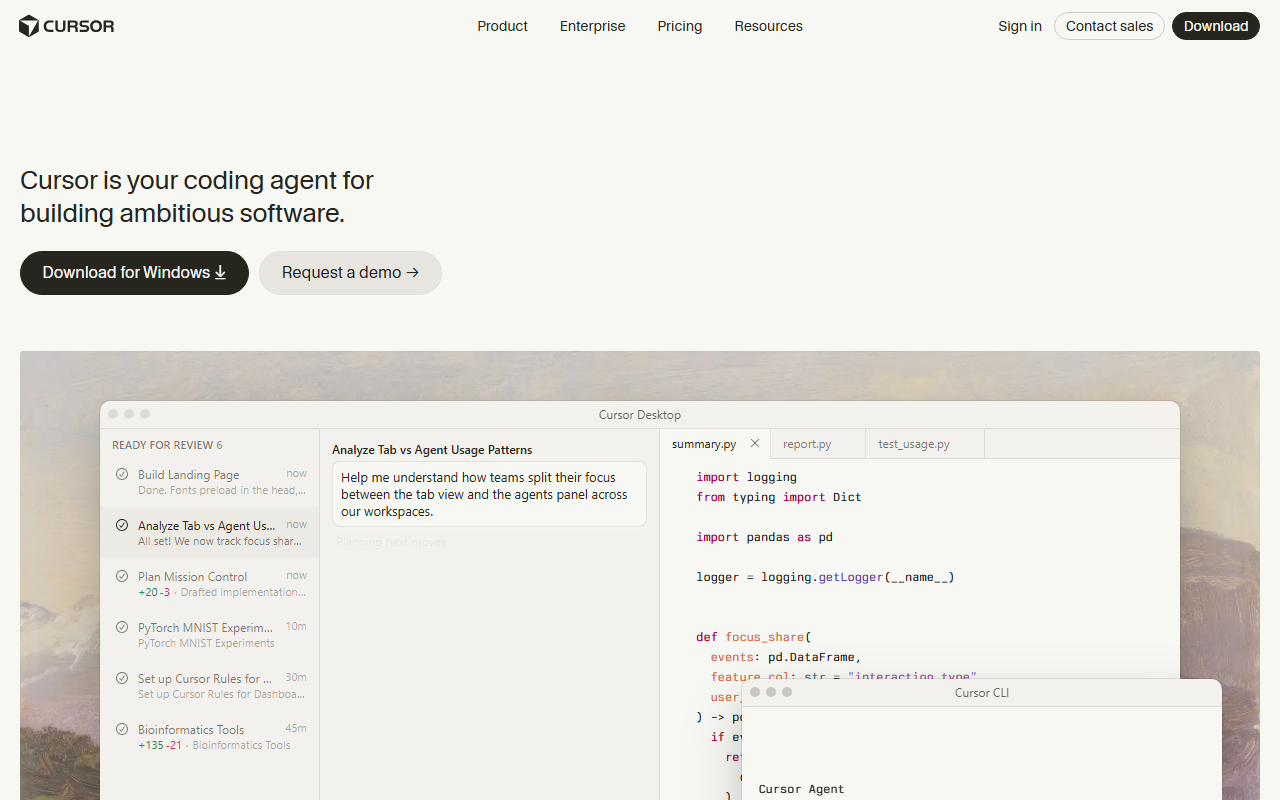
If the mode mismatch in step 2 was your problem, how to use Copilot in VS Code shows where inline suggestions end and agent mode begins. If large, unreviewable diffs were the issue, Cursor for beginners covers its per-hunk diff review, and how to use Claude AI walks through Claude Code's full-diff terminal review, which is harder to rubber-stamp by design. Cursor vs. Copilot is worth a look if you suspect the tool itself, not your workflow, is the mismatch. OpenAI's agent option is covered in how to use ChatGPT Codex, and free AI tools lists no-cost ways to test an alternative before paying for anything. If steps 1 through 6 fix the immediate frustration but you want a permanent habit change, AI coding without the vibes is the fuller workflow I built out of the same testing. For a wider comparison with real prices, best AI tool for code is the place to start.
Which tool fits which failure
I picked these three because they cover the two failure modes above — wrong mode for the task, and diffs too large to review — differently enough that switching between them is a real diagnostic step, not just a change of scenery.
| Tool | Interaction style | Free tier | Entry paid price | Good fit if the problem was… |
|---|---|---|---|---|
| GitHub Copilot | Inline completions + agent mode | 2,000 completions/month | $10/mo (Pro) | Autocomplete kept guessing wrong on larger tasks — Pro's agent mode adds real project context |
| Cursor | Chat + multi-file agent, per-hunk diffs | Yes — Hobby, limited Agent requests | $20/mo (Pro) | Agent changes touched files you didn't ask about — inline diff review catches that before you accept |
| Claude Code | Terminal agent, full-repo context | Limited use on Claude's free plan | $17–20/mo (via Claude Pro) | You were re-explaining the same context every session — a rules file plus full-repo context fixes that |
I confirmed these figures directly on Cursor’s pricing page, GitHub’s Copilot plans page, and Claude’s pricing page on August 25, 2026. Prices in this category change often — check the live pages before you commit to a plan.
Frequently Asked Questions
Is it normal to feel like I'm done coding with AI?
Yes. The METR study found experienced developers were 19% slower with AI on real tasks despite expecting a 24% speedup, and most still believed afterward that AI had helped. If your experience doesn't match the hype, you're seeing what the data shows, not failing to use the tool correctly.
How long should I test a fix before deciding AI coding isn't worth it?
Run the six-step diagnosis above on three separate tasks, timing each one honestly against doing it by hand. Three sessions is usually enough to tell a real mismatch from a single bad afternoon, without dragging the test out for weeks.
What's the easiest first step if I'm close to quitting AI coding tools?
Re-scope your last failed prompt down to one file and try it again. In my testing this single change fixed more "the AI is useless" sessions than switching tools, upgrading plans, or anything else on this list.
Is switching to a different AI coding tool free to try?
Mostly yes — GitHub Copilot's free plan, Cursor's Hobby plan, and Claude's free plan all support enough real use to tell whether a different tool fits your workflow better before you pay for anything.
Do I still need to know how to code if I use AI less?
Yes, and that hasn't changed. Every step here assumes you can read a diff and judge whether it's correct — the AI can write the code, but deciding whether it's right, or whether you're better off without it for a given task, is still your call to make.