An AI coding assistant is software built into your editor or terminal that reads your project and suggests, edits, or writes code alongside you, instead of you copy-pasting snippets from a chat window. Install one, open a real project, and work up from autocomplete to chat to full multi-file edits — that order matters more than which brand you pick.
Short answer: An AI coding assistant is a tool that suggests, edits, or writes code using context from your actual project, not just a generic chat window. To start, install one — Cursor, GitHub Copilot, and Claude Code are the three I've tested most — open a real project folder, and begin with autocomplete before trying chat or multi-file agent modes. Free tiers exist on all three.
Last updated July 29, 2026.
I've spent the past several weeks running the same set of small coding tasks through Cursor, GitHub Copilot, and Claude Code to see where each one actually helps versus where it just adds noise. This guide is the setup path I'd hand a friend who's never used one of these tools: what to install, what to try first, and the mistakes that cost me real time before I learned better.
What you'll need
You don't need much to start. A code editor (VS Code or Cursor, which is a VS Code fork) or a terminal, depending on which assistant you pick; an internet connection, since the AI features run in the cloud even when the editing itself feels local; and a real project folder — an empty folder works, but a project with a few existing files gives the assistant something to learn from immediately. You don't need to pay anything up front. Cursor's Hobby tier, GitHub Copilot's free plan, and Claude's free plan all let you try the core features before you decide whether a paid tier is worth it. If you already work from a terminal more than an editor, Claude Code is worth trying first since it lives there natively rather than bolting onto a GUI.
Step-by-step: setting up an AI coding assistant
1. Decide how you want AI in your workflow
Some people want quiet autocomplete that finishes lines without being asked; others want a chat panel to explain unfamiliar code; a smaller group wants an agent that can plan and execute a multi-file change on its own. Editor-native tools like Cursor and GitHub Copilot cover the first two well. Terminal-first tools like Claude Code lean harder into the third. Picking based on how you actually work saves you from fighting the tool later.
2. Install it where you already code
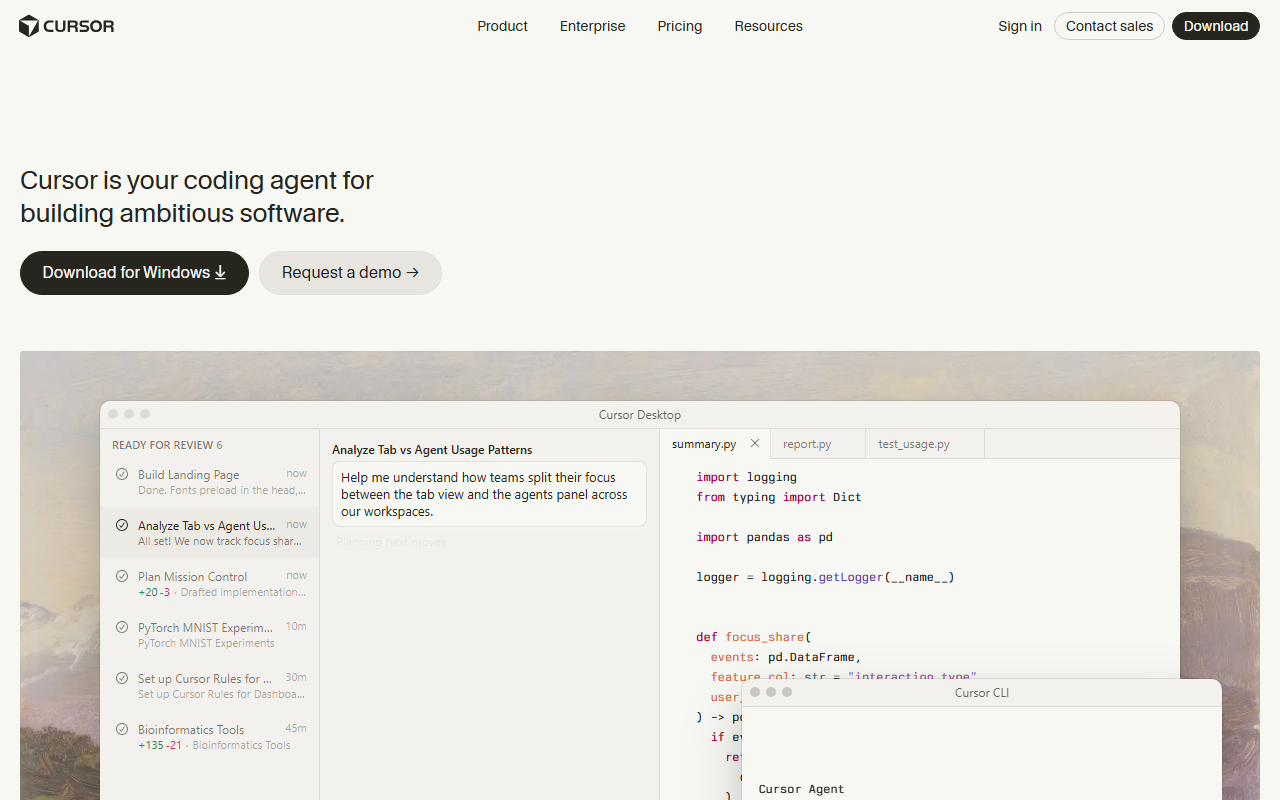
For Cursor, download the installer from cursor.com and it can import your existing VS Code settings and extensions on first launch. For GitHub Copilot, install the extension from your editor's marketplace and sign in with a GitHub account. For Claude Code, install it via npm and run it from your terminal inside a project directory. None of these take more than a few minutes.
3. Open a real project, not a blank file
Whichever tool you pick, point it at an actual codebase on day one. Every one of these assistants indexes your files in the background so it can reference code you haven't opened yet, and that indexing needs something real to work against — a blank file gives it nothing to learn your conventions from.
4. Start with autocomplete
Type normally and let the assistant suggest completions as gray inline text. In my testing, this is the feature beginners undervalue most because it looks like ordinary autocomplete — it isn't. It reads the surrounding function, not just the current line, so it often finishes a repetitive block correctly before you've typed much of it.
5. Move to inline edits and chat
Select a block of code and ask for a specific change in plain English — "add error handling for a missing file," for example — and review the diff before accepting it. Use the chat panel separately for questions: explain a function, trace a bug, or plan an approach before you touch anything.
6. Try multi-file agent mode last
Once you trust the smaller edits, try an agent-style request that touches several files at once — adding a new route plus its test, for instance. Read the full diff the way you'd review a real pull request. When I tested this cold, without the earlier steps, I caught myself either rejecting everything out of distrust or approving everything out of fatigue. Neither builds good judgment about the tool.
7. Add a project rules or context file
Most of these tools support a rules or memory file describing your stack, naming conventions, and anything off-limits. Without one, suggestions guess at your conventions from whatever's open, and that guess gets worse as the codebase grows.
Example prompts you can copy
These are close to what I typed while testing each mode above:
- Inline edit: "Add input validation and throw a clear error if this argument is missing or the wrong type."
- Inline edit: "Rewrite this loop as async/await and wrap the network call in a try/catch."
- Chat: "Explain what this file does and list every place it's imported from."
- Chat: "I'm getting a null reference error around line 40 — walk through the likely causes before suggesting a fix."
- Agent mode: "Add a
/healthendpoint that returns status 200 and a timestamp, plus a test in the existing test file's style."
Keep each prompt scoped to one outcome. A vague ask like "make this better" gets a vague diff that's harder to review than the code you started with.
Common mistakes to avoid
The mistake I made most often early on: reviewing a five-file agent diff with the same quick glance I'd give a one-line autocomplete accept — a change that size deserves the attention of a real code review, not less. Second, letting autocomplete suggestions through on autopilot; they're usually right, but accepting a wrong one late at night is how small bugs sneak in. Third, skipping the rules file and then being annoyed the tool ignores your conventions — it isn't reading your mind, it's reading whatever context you gave it. Fourth, treating chat like a search engine instead of pointing it at the actual file in question, which gets you a guess instead of an answer grounded in your real code. Fifth, staying on a free tier indefinitely once you're doing daily paid work — the free plans are genuinely useful for learning, but none of them are sized for full-time use, and you'll feel the limits inside a single real task.
Tools that make this easier
If you want a side-by-side test of the leading options with real prices, my best AI tool for code roundup compares Cursor, Claude Code, and GitHub Copilot on the same tasks. For a deeper walkthrough of Cursor specifically, see how to use Cursor for beginners, which covers its Tab, inline-edit, and agent features step by step. If you'd rather work from OpenAI's side, how to use ChatGPT Codex covers a comparable terminal-and-agent workflow. For Anthropic's own interface beyond just the coding tool, how to use Claude AI is worth a look. If none of the big three feel right, ChatGPT alternatives for coding covers a wider field. And if you want to test the waters at zero cost before committing to any of this, my free AI tools guide rounds up no-cost options across categories, not just code.
How the leading options compare
I picked these three because they represent the three workflows above — editor-native chat and edit, editor-native autocomplete-first, and terminal-native agent work — and because I've run the same small tasks through all of them.
| Assistant | Primary mode | Entry paid price | Free tier |
|---|---|---|---|
| Cursor | Editor-native chat, inline edit, agent | $20/mo (Pro) | Yes — Hobby, limited agent requests |
| GitHub Copilot | Editor-native autocomplete-first | $10/mo (Pro) | Yes — 2,000 completions/month |
| Claude Code | Terminal-native agent | $17–20/mo (via Claude Pro) | Yes — limited use on Claude's free plan |
I confirmed these figures directly on Cursor’s pricing page, GitHub’s Copilot plans page, and Claude’s pricing page on July 29, 2026. Prices in this category move often — check the live pages before you commit.
In my testing, GitHub Copilot's free tier was the easiest on-ramp for someone who's never used one of these tools: it slots into an editor you probably already have, and 2,000 completions a month is enough to learn the autocomplete habit without spending anything. Cursor's Hobby tier is the better starting point if you know you'll want chat and agent modes soon, since those live in the same app rather than a separate install. Claude Code is the one I'd skip for a total beginner — it assumes terminal comfort — but it's the strongest of the three once you're doing real refactors across an unfamiliar codebase.
Frequently Asked Questions
Is an AI coding assistant free to use?
Yes, for the basics. Cursor's Hobby plan, GitHub Copilot's free plan, and Claude's free plan all let you try core features — autocomplete, limited chat, or a capped number of completions — without paying. Heavier daily use runs into those limits fast enough that most working developers upgrade within a week or two.
How long does it take to learn to use an AI coding assistant?
Getting comfortable with autocomplete and inline edits takes about a day of normal coding, since they map closely to typing and selecting text you already do. Agent or multi-file modes take longer to trust because you're reviewing bigger diffs — budget a week of real project use before it feels reliable instead of risky.
What is the easiest way to get started?
Open a real project on day one instead of a blank file, and let autocomplete do its job before touching anything else. Once accepting suggestions feels automatic, move to inline edits, then chat, then agent mode — in that order, not all at once.
Do I need to know how to code first?
Yes. These tools speed up writing and editing code, but they don't replace understanding what your project is supposed to do — you still need to read every diff and judge whether it's correct. They're built for people who already code, not as a no-code substitute.
Which AI coding assistant should a beginner start with?
If you're not sure yet, start with GitHub Copilot's free tier since it needs the least setup and the 2,000-completion cap is generous for learning. If you already know you want chat and multi-file editing soon, Cursor's Hobby plan gets you there in one app instead of two installs.